
Vlad Baturin
Founder & CEO
BATURIN PUMPS & SYSTEMS
linkedin.com/in/baturincom
1. Switching the Lead Layout to List View
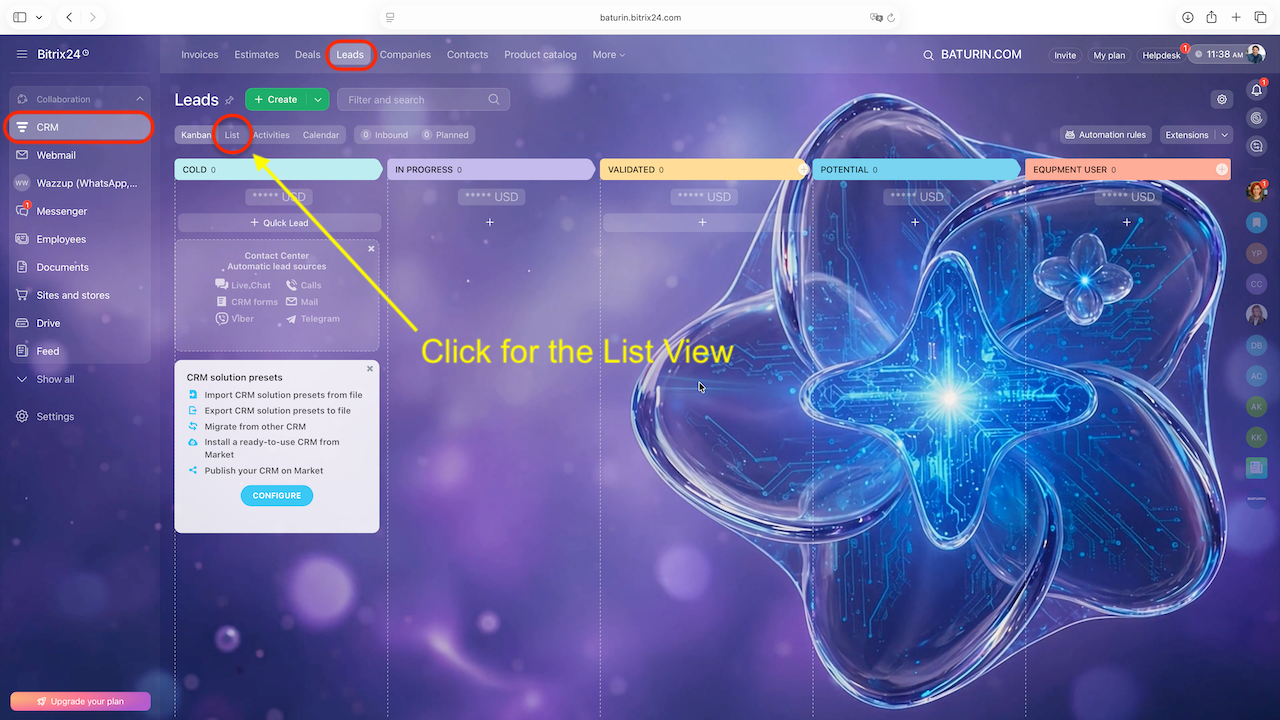
To add or review your first lead, click CRM in the left sidebar, then select Leads at the top of the screen.
The Leads page opens in Kanban view by default. To get started, select List from the horizontal submenu to switch to List View.
2. Standard Columns in the Lead List
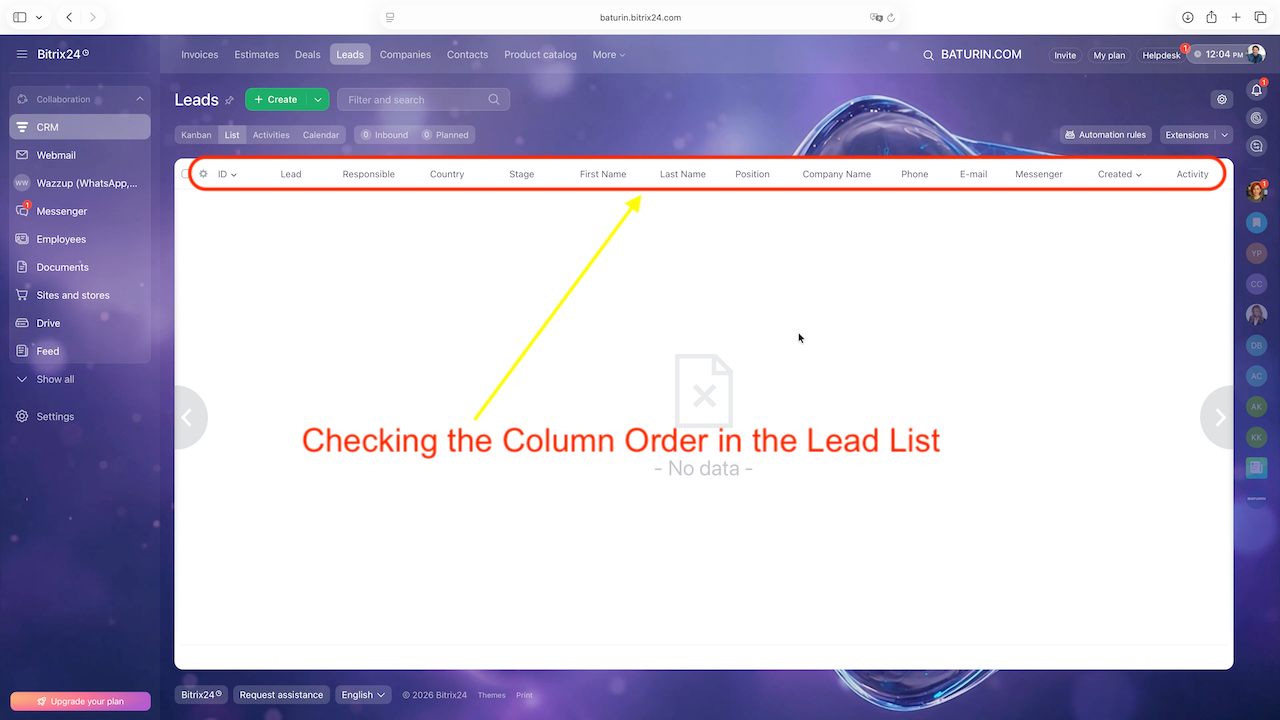
If you haven’t added any leads yet, the table will be empty and display the following Columns from left to right:
3. Reordering Columns in the Lead List
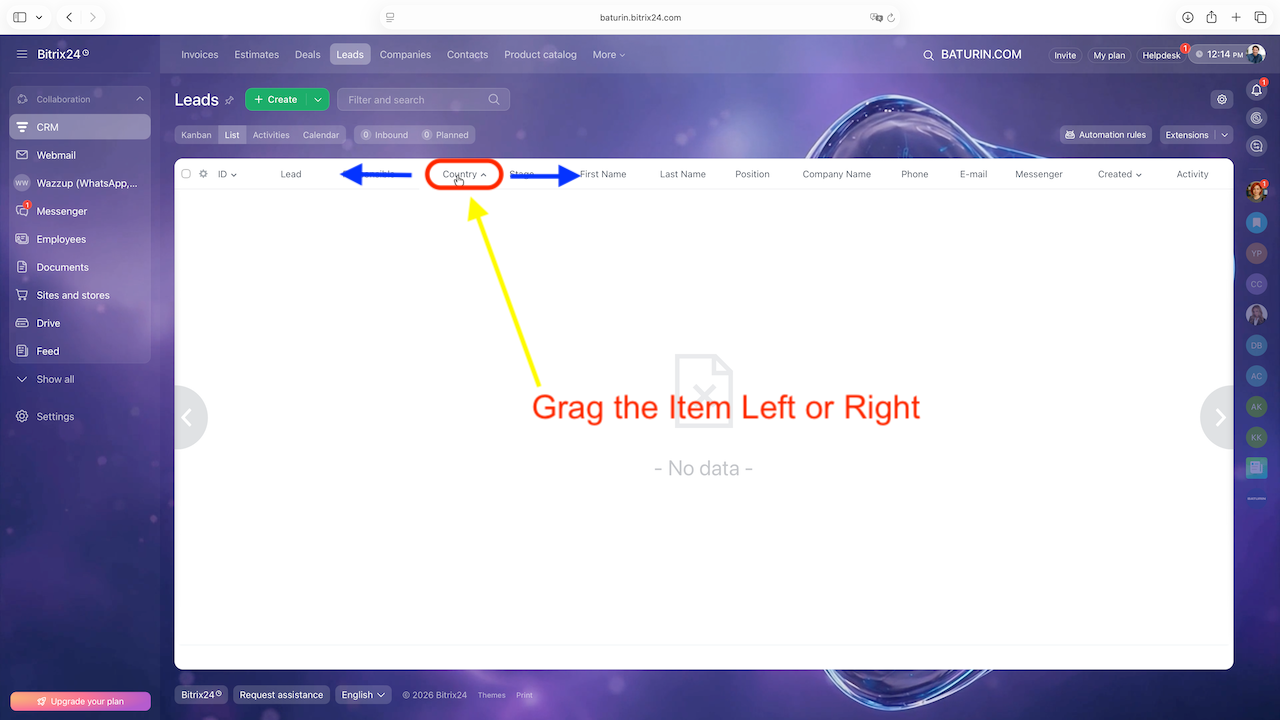
You can Drag Column Headers left or right to arrange them in the BATURIN's standard order.
4. Hiding and Showing Columns in the Lead List
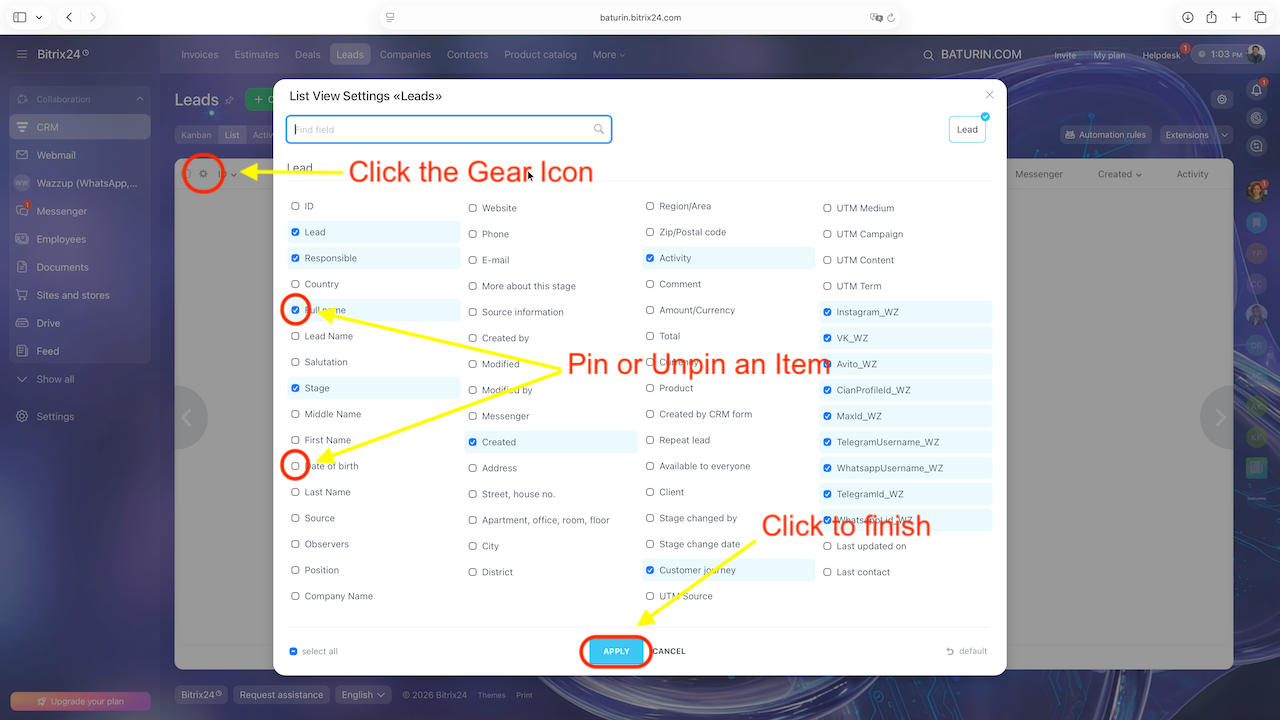
To Show or Hide Columns, click the Gear icon in the upper-left corner of the list and select or clear the checkboxes next to the column names.
5. Checking the result
Always keep the columns in the order shown above to comply with the Company’s Standard Layout.
Founder & CEO
BATURIN PUMPS & SYSTEMS
linkedin.com/in/baturincom
BATURIN © 2026 All rights reserved.